Results for Web Designer

Continuous Testing using Sismo

Sunday, August 30, 2020
Sismo is free and open source, and can be downloaded from the SensioLabs site.

"Learn how to easily test your PHP projects using SensioLabs’ excellent Sismo suite"

Testing code is something that every developer has to do to ensure a quality product on completion of a project. Most coders when they start testing just manually follow the procedure of the code and try to find where the issue is, possibly echoing out a few variables here and there. While this works fine sometimes, for larger projects or projects you have inherited from other developers it can be a time consuming and frustrating process. Thankfully there are lots of tools available to help simplify testing and to find bugs as soon as they are introduced. PHP is no different and has apps such as SimpleTest or PHPUnit. SensioLabs have been making waves with their modern Symfony2 framework and the associated modules, and recently released the Sismo testing suite. Sismo is a continuous testing server that is written in PHP but can integrate with any language. All you need to do is tell it what program you are using to test within the config file. This tutorial will show you how to test your PHP projects using Sismo, Git, and PHPUnit.

STEP 1: Download Sismo
To start off we need to download the Sismo software, which can be found at sismo.sensiolabs.org. Sismo is quite simply just one PHP file, but don’t be fooled, its a very powerful little tool. Place the file into the web directory of your project.

STEP 2: Install PEAR
You’ll also need to have the PEAR package manager installed if you don’t already. For Windows users, run the file shown from the search bar, for OS X and Linux users, you’ll need to run them from a terminal window. We need to do this, as this is how we will install PHPUnit, which is to be the testing software that we’ll use.

CODE:
Windows:
c:\php\go-pear.bat.

Linux:
$ wget http://pear.php.net/go-pear.phar
$ php go-pear.phar


OS X:
$ wget http://pear.php.net/go-pear.phar
$ php -d detect_unicode=0 go-pear.phar

Installation is done using the PEAR package manager, which is used for many other PHP libraries.

STEP 3: Install PHPUnit
Once you have PEAR set up its time to install PHPUnit. PHPUnit is one of the most popular unit testers for PHP and is a valuable tool to have. Back in the terminal, enter the commands below to start the installation.

CODE:
pear config-set auto_discover 1
pear install pear.phpunit.de/PHPUnit

STEP 4: Example Test For PHPUnit
When you write your tests for PHPUnit, you extend the main PHPUnit class and then place your test methods inside that. It’s normal to keep your tests in a separate folder for the rest of your app.

CODE:
require_once 'PHPUnit/Framework.php';
class ArrayTest extends PHPUnit_Framework_TestCase
{
}

STEP 5: Main Test Methods
If you are not used to unit testing, then now is a good time to take a look at how it works and why you really should do it. Unit testing means writing code that verifies the output of your main app code. You write tests for each section of your code until your entire project is covered. You can then run all the tests as one when implementing new features to quickly find bugs across the entire project.

CODE:
functiontestToString(){
{

STEP 6: Testing of Main Test Methods
When writing unit tests, you need to break each method down into goals. Here we simply confirm that the variable we are testing contains the string ‘This is my var’. If it does not, then the test fails.

CODE:
functiontestToString(){
$result=$this->myVar->toString('contains%s');
$expected='containsThis is my var';
$this->assertTrue($result==$expected);

STEP 7: Second Method
As another example of a unit test method, we can test that we have the correct amount of elements within an array by calling the assertCount method. This test would clearly fail, as we are asserting that we have 12 elements when we only have three within our array.

CODE:
public function testAmount()
{
$this->assertCount(12, array('myString' , 'anotherString' , 'etc'));
}

STEP 8: Test Out Sismo
We need to create a config file for Sismo to read from. As Sismo is one file, we have to make the directory and file contents ourselves. It’s easiest with Terminal. Navigate on the command line to the folder you placed Sismo in.

STEP 9: Create Config Directory
In Terminal enter the commands below. This creates our config directory and then a PHP config file that we will populate with our settings. Sismo is straightforward, but there are a few handy settings you can tweak.

CODE:
mkdir ~/.sismo
cd ~/.sismo
touch config.php

The main web interface is attractive, but most of the work can be done using just the console.

STEP 10: Start config.php
Now edit the config.php file to contain the settings with which we need to work. Start off by creating a new array called $projects, then we can add a notification system. Uncomment the notifier variable relevant to your OS.

CODE:
<?php
$projects = array();
For OS X use the Growl notification system on test end
$notifier = $notifier = new Sismo\Notifier\
GrowlNotifier('pa$$word');
For Linux, use Dbus notifications
$notifier = new Sismo\Notifier\DBusNotifier();

STEP 11: Add Your Git Repos
Sismo works with Git repositories, so you will need to have a local and GitHub hosted repo to get the most out of the testing suite. Replace the relevant values in the code below with your own repos.

CODE:
$projects[] = new Sismo\GithubProject
('myLocalProject', '/Users/kiksy/myProj', $notifier);
$projects[] = new Sismo\GithubProject
('myProj', 'kiksy/myProj', $notifier);

STEP 12: Project Settings
Then we need to add a new project to our Sismo object. Once we have done that we can set our remote repository location, this will be somewhere on github.com. The branch that you will need is the most likely master, but you can obviously get this to your own branch you’re working on.

CODE:
$myProj = new Sismo\Project('myProj');
$myProj->setRepository('https://github.com/kiksy/myProj.git');
$myProj->setBranch('master');

STEP 13: Remaining Project Settings
The last settings we need to add make up the command that will run to start your tests. As we are using PHPUnit, it links to the script to run that. You can switch this out though and change it for any testing software that you want to use for your specific language. Finally, we add the commit route and return our $project variable.

CODE:
$myProj->setCommand('./vendors.sh; phpunit');
$myProj->setSlug('symfony-local');
$myProj->setUrlPattern('https://github.com/kiksy/myProj/commit/%commit%');
$myProj->addNotifier($notifier);
$projects[] = $myProj;
return $projects;

STEP 14: Changing The Config File Location
As the config file is very specific for one project, and the default location is set to be within the root of the user directory, you may want to move it – perhaps to the bottom of the project directory. That way you can run multiple Sismo tests on the same machine for different projects. Simply run this command to do so:

CODE:
php sismo.php --config-file=.sismo/config.php

STEP 14: Changing The Config File Location

STEP 15: Run Sismo Test
Open the browser and go to localhost/myProj/sismo.php – you should then see the main Sismo report page. This is where the updates will come on the status of each test and whether or not they have passed. The actual running of the tests is done from the command line.

STEP 15: Run Sismo Test


STEP 16: Run Your Unit Test
The next thing we need to do is run our unit test and see the end result. Make sure you are in the correct directory within your project and then run the command below. In your browser you should then see the results of the test.

CODE:
php sismo.php build

STEP 17: Possible Issues
While Sismo is fairly easy to set up, it is possible to come into some problems. Even if you don’t use it, Sismo is dependent on SQLite3, and so this needs to be installed before Sismo will successfully run. While OS X mostly comes installed with SQLite, some of the Linux flavors don’t. Run the below to start the installation.

CODE:
sudo apt-get install php5-cli php5-dev make
sudo apt-get install libsqlite3-0 libsqlite3-dev
sudo apt-get install php5-sqlite3
sudo apt-get remove php5-sqlite3
cd ~
wget http://pecl.php.net/get/sqlite3-0.6.tgz

STEP 18: Make SQLite3
After we get command has finished downloading the tarball, you need to unzip it and then build the extension from the source. After that the final command will restart Apache. If this doesn’t work for you, you can also try ‘apt-get install php5-SQLite’.

CODE:
$ tar -zxf sqlite3-0.6.tgz
$ cd sqlite3-0.6/
$ sudo phpize
$ sudo ./configure
$ sudo make
$ sudo make install
$ sudo apache2ctl restart

STEP 19: More Descriptive Output
To make Sismo output more information from the command line, either to debug the installation or to find out more on the state of your builds, you can use the --verbose switch when running Sismo. Just enter the command below.

CODE:
php sismo.php build --verbose

STEP 19: More Descriptive Output

STEP 20: Silence Sismo
Alternatively, if you are logging the results of the tests, you might not want Sismo to output so much information. In this case you can tell Sismo to be quiet, simply by using the --q or --quiet switch. If at any time you get stuck, you can also use -h to get help on a topic.

CODE:
php sismo.php build --quiet

STEP 20: Silence Sismo


STEP 21: Extending Sismo
As mentioned earlier, the default location for the config file is in the root of your own personal user directory. This isn’t great if you have lots and lots and lots of projects on the go at one time, or if you are working remotely on a project, perhaps one with multiple branches. SismoFinder is a simple wrapper to solve that problem for you.

CODE:
git clone https://github.com/havvg/SismoFinder.git

STEP 22: SismoFinder Config
You then just need to replace the Sismo config file with the following code. This autoloads the project into the correct directory and saves time. You can also continue to use the other settings such as the choice of notifications.

CODE:
$loader = new Symfony\Component\ClassLoader\UniversalClassLoader();
$loader->registerNamespaces(array(
'SismoFinder' => '/Users/kiksy/myProjSismoFinder/src',
));
$loader->register();
$finder = new SismoFinder\Finder();
$finder->addWorkspace('/Users/kiksy/myProj');
return $finder->getProjects();


STEP 22: SismoFinder Config


Code Library: The Sismo PHP Config Code

The Sismo.php config file is the only thing you need to add to start using the continuous testing server.

CODE:
//$notifier = $notifier = new Sismo\Notifier\GrowlNotifier('pa$$word');
//$notifier = new Sismo\Notifier\DBusNotifier();
$projects[] = new Sismo\GithubProject('myLocalProject', '/Users/kiksy/myProj', $notifier);
$projects[] = new Sismo\GithubProject('myProj', 'kiksy/myProj',$notifier);
$myProj = new Sismo\Project('myProj');

The GitHub repository is set here. Make sure to add the .git at the end, in the same way, you would clone a repo.

CODE:
$myProj->setRepository('https://github.com/kiksy/myProj.git');
$myProj->setBranch('master');
$myProj->setCommand('./vendors.sh;phpunit');
$myProj->setSlug('symfony-local');
$myProj->setUrlPattern('https://github.com/kiksy/myProj/commit/%commit%');
$myProj->addNotifier($notifier);
$projects[] = $myProj;

Finally, we return an array of projects for Sismo to monitor. If the projects are not valid, then Sismo will let you know they have failed in the terminal window.

CODE:
return $projects;

Alternative to PHPUnit:
One of the other popular unit testing suites for PHP is SimpleTest. SimpleTest can be downloaded from www.simpletest.org, and can be used with Sismo simply by linking to the relevant directory.
Continuous Testing using Sismo Continuous Testing using Sismo Reviewed by Kamal Thakur on Sunday, August 30, 2020 Rating: 5

Build Prototypes With Adobe XD

Sunday, March 24, 2019
Build Prototypes With Adobe XD

DOWNLOAD

Design seamless transitions between screens using 'Auto-Animate' and control it with your voice in Adobe XD

In contemporary web and app design there are often times when the interaction doesn’t open a whole new page or screen. The modern approach to creating interactive content requires transitions between design interface elements so that the user is surprised and wowed by the experience of changing content. This all happens on the same screen or page, without a refresh. Designing these kinds of interactions and refining them to work properly can take time, but it’s worth doing before writing your code.

This is what Adobe XD has spent the last few months of development getting right. Create content in one state on one screen, move that content to the new state on the new screen and simply choose the 'Auto-Animate' option to transition. All the content that is the same on both screens automatically animates from one position to another. If you don’t want all the content visible on both screens, make the content invisible on the first and it will transition into place.

Going beyond that, a new feature of XD enables the user to control interactions with their voice. We’ll explore this as a design feature and how the app can speak back to the user as well, which can provide some interesting design opportunities.

STEP 1: Starting The Project
If you don’t have Adobe XD, you can download and install it from adobe.com/ca/products/xd.html. Once the install has completed, open the software and the welcome screen will enable you to choose a screen size to download for. In this case choose the iPhone 6/7/8, as that’s the right size for this project, but you will see there are a variety of sizes available.


STEP 2: Import The First Image
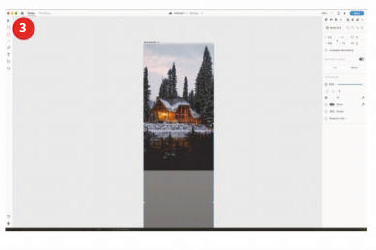
There are different ways to import images, but in this first instance go to File>Import. Choose the 'assets' folder from the project files and the first image to import will be 'sky.png'. Place it on the top of the screen and move it a just couple of pixels down.


STEP 3: Place The Cabin
The next image for the design will be the 'cabin.png'. Just import this in the same way you did in the previous step and then place it to fill the screen. Finally, import the image 'trees.png' and place it at the bottom of the screen with the trees over the lake.


STEP 4: Bring In The Logo
The reason those images are separate layers is so that when a transition is created between screens they can move separately. Go to the File menu and choose Import. This time select 'logo.ai', which is a vector image. Place this image in the top centre of the screen.

STEP 5: Add A Circle
Select the circle tool and draw a circle just slightly larger than the logo. In the Properties panel on the right, remove the stroke and make the background black. Select Background blur and reduce the brightness to -30 so that the circle is still black.


Hidden Panels:
The Asset panel and the Layer panel are available from the bottom left of the XD Interface. These enable you to store asset styles and rename or reorder layers.

STEP 6: Reorder The Graphics
Now the circle needs to move behind the logo. Select Object>Arrange and send backwards. Like in other Adobe products, it is also Cmd/Ctrl+[ to move any graphic backwards in the layer order. Using the right square bracket, meanwhile, will bring an object forwards in the order.


STEP 7: Drop Themic
Now import the 'mic.ai' image and resize the image to be relatively small. Place this at the bottom of the screen. Draw a circle around this and uncheck the fill so that it’s removed. Then make the stroke white and two pixels wide. Position that around the 'mic' image.


STEP 8: Text Message
Use the text tool to add the words 'speak to search' below the microphone. Make the text white and change it to Helvetica Neue Condensed Black. In the bottom left of the screen click the Assets panel icon to open it. With the text selected on the screen, click the ‘+’ icon next to ‘Character styles’ to save this format for the text.

STEP 9: Join A Group
Select the Layer panel icon in the bottom left of the screen. On the screen, select the 'search' text and Shift-click to add the circle and the mic icon. Go to Object and choose Group. In the Layer panel rename this group 'Search'. It’s useful to name groups, especially when animating these.

STEP 10: Group The Logo
Just as in the last step, select the logo and the blurred circle around it, then group them together. In the Layer panel, rename the whole group 'logo' so that it is easily identifiable if you need to edit this again later. For the moment the design for the first screen is complete.


STEP 11: Extra Elements
Even though the first screen is complete there are still more design elements that need to be added. This is how animation is created by changing the elements’ positioning between screens. Go to the rectangle tool and hold Shift to add a square on the screen, making the border white.


STEP 12: Different Import
Now open the folder for the assets through your operating system. Select the ‘cabin1.png’ image and drag this directly onto the square that you created in the previous step. It will automatically be masked inside this. Double click to edit the position of the image and make sure that the cabin is visible in the square.


Different Modes:
There are two different modes in Adobe XD; the design view that allows you to lay out your screens, and the prototype view, which enables you to wire up the interactions.

STEP 13: Add A Label
Using the Text tool, add the label 'Forest Cabin' below the text and use the Assets panel to style the text in the saved style from step 8. Select the image and the label and group them together. Name the group 'left cabin' in the layers panel.


STEP 14: Duplicate The Group
Normally repeating an interface element is the perfect job for the 'Repeat Grid' tool. However, this is going to need specific animation, which doesn’t work with the Repeat Grid. Select the image and text group, then copy and paste it so that it sits next to the original, and add the image 'cabin2.png' instead.


STEP 15: Rename Then Copy Again
Change the text to 'Snow Cabin', and in the layers panel name this 'right cabin'. Select both the left and right cabin and duplicate them, position the duplicates below and update their text and images with 'cabin3.png' and 'cabin4.png'. Group both of these together and name the group 'lower cabin'.


Working With Responsive Design:
If you are designing web pages then it’s always difficult to design for different screen sizes. Adobe XD understands that designing modern web pagesmeans designing for different screens. By default the Responsive Resize option is turned off for an artboard. Turn this on when you want to resize your artboard. It’s usually a good idea to make a copy first for the differentsized screen. XD does a pretty good job of resizing your content, but if anything doesn’t stay together that should then simply group those elements. After resizing, you canmanually adjust anything that isn’t to your liking, whichmakes it much faster thanmost other design programs to convert a design from screen to screen.

STEP 16: Text Title
Add text to the page with the text 'Search results for cabins'. Give this the Rockwell typeface and save this to the Character Styles in the Assets panel. Now position the 'lower cabin' group right at the bottom of the screen and take the appearance down to zero so that it is invisible on this screen.


STEP 17: Changing Opacity
Now select the left and right cabins, move them to the bottom of the screen and take the appearance slider to zero. Repeat again for the search text. When we move to another screen these will all animate to their new positions. In the Layer panel, move the 'left cabin' above all of the other cabin groups.


STEP 18: Duplicate The Screen
Select the artboard by clicking on its name, then double click the artboard and change the name to 'home'. Copy and paste the artboard and rename it 'search'. Now select the logo and move it up to almost off the screen, then reduce its appearance to zero.


STEP 19: Move The Backgrounds
Select the sky image and nudge it up slightly on the screen. Select the cabin image and move it up until the cabin is at the top of the screen. Then click on the trees image and move it over the cabin. Finally, select the ‘search’ group and reduce the appearance down to zero.


STEP 20: New Elements Appear
Select the search results in the Layer panel and bring its appearance up to 100. Move it up on the screen. Repeat this for the left cabin, right cabin and lower cabin. Use the pen tool to draw a simple back button and add a circle around it. Make the background blur and take the brightness of that down to -30.


STEP 21: Complete The Back Button
Select the back arrow and circle, group them together and name them 'back button' in the Layer panel. Switch over to the 'Prototype' mode by pressing 'Prototype' in the top left of the XD interface. Select the homescreen, drag the blue arrow to the search screen and a pop-up panel will appear.

STEP 22: Voice Command
Change the Trigger to Voice and type the word 'search' as the voice command to control this. Change the Action to Auto-Animate and Easing to Snap. Make the duration 1.5s. In the search screen click on the back button and drag the blue arrow back to the 'home' screen. Just change the Trigger to Tap.


STEP 23: Test The Prototype
Over in the top right of the XD interface is a play button. Click on this and a working prototype will now pop up on the screen. On the homepage you will need to hold down the Space-bar while you speak the voice command 'search'. When you let go of the Space-bar it will take you to the next screen and animate the graphic interface into position.


STEP 24: Going Back
Once the transition has run you can press the back button to get back to the homescreen. Close the prototype and click on the search screen, then click the blue arrow to the right (don’t drag). Change the Trigger to Time, make the delay 0s and set the Action to Speech Playback. Make the speech 'search results for available cabins'.


STEP 25: Speech Confirmation
Test this now with the play button to hear a voice confirmation of the search. Close the prototype when you have tried this out. Another screen is going to be created, so let’s click back on the 'Design' view in the top left of the XD interface. Click on the search screen by clicking the name, and then copy and paste it.


STEP 26: Scaling The Image
Rename the new screen 'cabin'. Double click the image for the 'left cabin' layer. Resize the corner handles so that it fills the screen, then reposition the image inside so that it covers that screen. Click on the search results text and take the appearance down to zero to remove it from view.


Test On A Device:
Your final testing of the app is not just limited to testing on the desktop – your prototype can also be tested on a device to get the right kind of feel for how it will look on the device. First of all, download the Adobe XD app fromyour device’s respective app store, then connect the device to the computer with a USB cable.

Click on the small mobile phone icon in the top right of the XD interface. In the panel that pops out you should be able to see the name of the device and, provided you have the XD app running on that device, youwill be able to see and test prototypes. It’s also possible to avoid using a USB cable and transfer via the Creative Cloud.

STEP 27: New Screen Elements
Double click the 'Forest Cabin' text as it is part of the group. Enlarge the text size to 26 pixels and move it up slightly on the screen. Add text to the screen in Helvetica Neue Medium at 14 pixels size and set it to white to stand out against the background. Add a white line with the line tool under the heading.


STEP 28: Create A Button
Use the Rectangle tool to draw a rectangle on the screen at the bottom of the design. Drag in the corner handles to give this shape round corners. Add the word 'Reserve' to this, using the saved character style in the Assets panel for Helvetica Neue in Condensed Bold.


STEP 29: Move To Prototype Mode
All the design elements are in place now for the entire design of the app. Move to the 'Prototype' Mode by clicking the word 'Prototype' in the top left corner. In the search screen click on the 'forest cabin' group of the image and text. Drag the blue handle from this over to the 'cabin' screen.


Repeat Grid:
Often when designing interface elements there are a number of repeating items, so be sure to use 'Repeat Grid' for these.

STEP 30: Animation Settings
In the pop-up panel for the transition between screens, choose Tap as the Trigger, then make Action Auto-Animate. Keep Easing as Snap but reduce the duration of this to 0.6s. This ensures that the animation doesn’t drag – the movement of the first screen to the second screen had a lot of movement that required a longer transition.


STEP 31: Link Up The Back Button
Now select the back button from the final screen and drag the blue arrow from this back over to the 'search' screen. All the settings from the previous transition should be remembered. You are now ready to go ahead and test this by clicking on the play button.


STEP 32:  Auto-Animate
What you will see with the auto-animate now is that the image expands to fill the screen, and the elements that are no longer needed will fade away while the new text will fade in. The opposite happens when going back. This provides a good way to see the auto-animate working across three screens.


STEP 33: Save The Project
By default your project should automatically save to the Creative Cloud, but it is a good idea to save a copy to your own hard drive in case there are any issues. Click File>Save, change the location to your own computer and name the project with a suitable name.


STEP 34: Sharing The Project
The whole point of prototyping is to test the project on other people. Fortunately there is a share button on the top right of the XD interface that makes this a breeze. Click the share button, and in the dropmenu that appears select the option Share for Review.


STEP 35: Publish Prototype
In the next screen you are told that auto-animate support is not yet available for the web, but it is coming soon. Click Create Public Link and then click the link in the top right to visit the public link in a web browser. You will need to hold the Space-bar down to use the voice command with the prototype.


STEP 36: Video Version
Another prototype can be shared by recording the interface in action. Click the share button and choose Record Video. This will open a window, and when you close this you will be prompted to save a recording of the screen as an MP4 file, which is also a useful way to share your prototype.


DOWNLOAD
PDF | CODE
Build Prototypes With Adobe XD Build Prototypes With Adobe XD Reviewed by Kamal Thakur on Sunday, March 24, 2019 Rating: 5

10 Tips For Better Online Forms

Sunday, March 24, 2019
10 Tips For Better Online Forms

Introduce UX practices into forms to give users a better experience and help increase conversions.

DOWNLOAD

As users we generally don’t enjoy filling in forms online. This is down to a number of reasons. Forms tend to be time-consuming – we are already thinking about the product or service that waits beyond the thank you page, and we want to get there as quickly and easily as possible. Forms often seem complicated, and the increased cognitive load they put on us makes completing the actions even harder. And then of course there is the risks and issues around personal data. Everyone is now much more aware of GDPR – and anyway, why do you really need to know my birthday for me to sign up for this service?

Forms are the key touch point between our users and us, so it is odd that they tend to be neglected by designers. Having done all the hard work to sell the product or service we then force the user to prove themselves worthy by navigating a long form with obscure error messages and input fields.

With this in mind, what steps can we take when building these touch points for our users that will make the process simpler and generally more enjoyable? Try using some of these suggestions in your next project.

STEP 1: Ask As Little As Possible
Following the recent GDPR legislation your attitude towards collecting data will most likely have changed a little, and really you want to only ask the bare minimum in order to let your user complete their goal. The less the user has to fill in, the more likely it is that they will.


STEP 2: Visually 'chunk' Your Forms
Sometimes you have no choice but to request lots of data for a sign-up or registration. In this case it really helps to visually break your content down into bitesize amounts. You can usually group these based on the type of information you need.


STEP 3: Embrace A Single-Column Layout
Although two-column layouts can look visually nice in a design and are often used in print, the eye will naturally track vertically. By having a two-column form layout the user’s eye will have to zigzag left to right in search of new lines, which will impair the user’s ability to give you the info you need.


STEP 4: Use Input Constraints
Make use of constraints on your user’s inputs. It may be quicker just to use text fields for everything, but the well-planned use of number fields or JavaScript to ensure that only a certain type of data can be added will ensure you have less erroneous data in your submissions, and most importantly will help to guide the user.


STEP 5: Auto-Focus
Remove a click straight away by auto-focusing on the first field in the form. It gives the user a good starting point. Make sure the focus itself is styled to be clear and prominent. This will really help the user to see where they are in the process.


STEP 6: Prefill And Preselect Where Possible
If you have data relating to a user, or they have filled in some information previously, then use it to prefill elements of the form. A perfect example would be a billing/shipping address. Make sure you give the user the option to use the same address rather than type it in twice.


STEP 7: Error Checking
Now your user has entered their data, make it as simple as possible for them to rectify any errors. Always show your errors inline next to the field in question, and explain the issue so the user knows what to do to solve it. If possible use real-time validation to check as the user fills the form in, and perhaps give a signal via an icon, such as a tick, to show when it is correct.


STEP 8: Show That Optional Fields Are Not Required
As mentioned, with the new GDPR guidelines you should only hold the information on a user that you really need. With this in mind everything on your form should be mandatory, so indicate optional fields rather than adding an asterisk to every required field.


STEP 9: Explain Why You Need Information
If you do want to make someone’s experience better with extra personalisation, make sure you explain what you will use the information for. Bear in mind that the information you’re asking from a user could be personal so they won’t want to just give it away. A site like Facebook will use this information to try and build a personal relationship with you, but generally you should follow the 'less is best' rule and not ask if it isn’t necessary.


STEP 10: Make Your CTAs Work
Now the user has filled in your form, make sure the design and visual hierarchy of the page works so that they naturally press the submit button. There are loads of ways to visually do this.


Favour The User:
It may be easier as a developer to receive a telephone number split into country, area code and digits, but it is not easiest for the user. You should always try to let your back-end process or some JavaScript do the heavy lifting and get your data into shape. Likewise you could take the user’s full name in one field.

DOWNLOAD
10 Tips For Better Online Forms 10 Tips For Better Online Forms Reviewed by Kamal Thakur on Sunday, March 24, 2019 Rating: 5
Powered by Blogger.