Results for Web Workshop

Sci-Fi Effects In Photoshop

Saturday, September 19, 2020
Sci-Fi Effects In Photoshop
Push the effects to the max: You can take your buttons to another level by applying hot to soft orange gradients and a thin 1px Inside Stroke at 30% Opacity. This will further enhance your luminous effects. Grouping respective layers into Smart Objects and sharpening also helps to intensify the futuristic feel.


Inspiration: www.disney.co.uk/tron

Tron Renaissance: “In 1982 Tron was released and inspired millions of graphic designers, spawning franchises across the globe. Sadly, for many years, the film’s looks couldn’t be translated online – hardly a surprise as the web didn’t really take off until six years after the film! However, with a resurgence of the brand thanks to TRON: Legacy (released in 2010), and the much more advanced capabilities of contemporary software, these boundaries thankfully no longer exist.”  - Adam Smith

Cinema is awash with awesome Sci-Fi special effects right now that are being deployed in branded websites, as well as inspiring others to create more personalised styles. From floating transparent panels to holographic Flash effects and energised lighting and colour, many sites are being given a futuristic twist.

A great example is www.disney.co.uk/tron. The site’s design follows the aesthetics of the TRON 2.0 brand meticulously, littered with neon lighting – most noticeably in the page’s buttons and panels. These sport outer glow effects that are further boosted through the use of textures, along with a little Flash animation and electronic audio.

Here we’ll show you how to recapture the 2D effects of this website using the power of Photoshop’s layer style options and shape tools. These effects can be enhanced further still with a bit of your own creativity.

#1 - TOOL TIPS: Create A Bokeh Brush
Bokeh is great for enhancing focal points in lighting effect images. It creates the illusion of depth of field in 2D digital formats – a great asset for web designers looking to create authentic floating or holographic futuristic elements. Creating this effect wholly in Photoshop is easier than you might think. Start by opening a new layer and applying a light grey (#6c6c6c) Ellipse shape. Add a white 2px Stroke set to Outside. Ctrl-click your shape layer, selecting Convert to Smart Object. Cmd/Ctrl your Smart Object and select Edit > Define Brush Preset. Now apply this to a new layer at 10% Opacity, with the Scattering parameter at 1,000%.
#1 - TOOL TIPS: Create A Bokeh Brush


#2 - TECHNIQUE: Nail Neon Effects
STEP 1: Set Up Your Canvas
Open a dark navy backdrop layer. Set your foreground colour to #364f7c then select Gradient Overlay from the Layer Styles options. Set Opacity at 30% and Scale at around 85%. Create a new Soft Light layer and choose a large blue (#364f7c) brush. Make sure that Pen Pressure is activated in the Brush Presets.
STEP 1: Set Up Your Canvas


STEP 2: Shaping Up
Apply your brush to the edges of your image and add a layer mask. With this active, go to Filter > Noise > Add Noise > Amount 11% to limit gradient banding. Select the Pen Shape tool and draw out a shape like above. The Ellipse shape tool has been added in the bottom right corner, set to Combine Shapes.
STEP 2: Shaping Up
STEP 2: Shaping Up


STEP 3: On The Right Path
Set blending to Overlay and add a layer mask. Apply a 50% Opacity black-to transparent gradient to the bottom-right of your shape twice. Cmd/Ctrl-click your shape layer thumbnail, create a new layer, select the Paths panel and choose to Make Work Path from a selection. Cmd/Ctrl-click the path thumbnail to make a selection.
STEP 3: On The Right Path


STEP 4: Add An Outline
Select a small hard orange brush and Ctrl-click your path, before choosing the Stroke Path option. Apply a #f47a20 colour, with Opacity at 53%, Noise at 5%, Spread at 8%, Size at 16px and a Screen blend mode. Duplicate the outline layer, setting blending to Screen. Press Cmd/Ctrl+U and drop the Hue to -180.
STEP 4: Add An Outline


STEP 5: Time To Erase
Next, apply a layer mask to this layer and erase halfway from the left. Reactivate your original shape layer and apply a Tiles-Smooth Pattern overlay (in Layer Styles) at 25% Opacity and 85% Scale. Use what you’ve learnt to create a new shape (see above) in the bottom-left corner of your design.
STEP 5: Time To Erase


STEP 6: Feather-Light Touch
Duplicate your original shape layer and your last shape, reset both the blending modes to Normal, then delete any attached layer masks and layer styles. Place both new layers at the top of the stack, Cmd/Ctrl-click them and press Cmd/Ctrl+E to merge. Now select the Feather Elliptical Marquee tool at 1px size.
STEP 6: Feather-Light Touch


STEP 7: On The Button
Next, select the right-hand side of your shape and add a layer mask, inverting this (Cmd/Ctrl+I). Drop the new layer’s Opacity to 20% with Fill at 35%. Create your button by selecting the Ellipse shape tool and activating the Path setting. Draw out your circular button on another new layer and open up the Paths panel.
STEP 7: On The Button


STEP 8: A Glowing Finale
Cmd/Ctrl-click your path, selecting Stroke Path, with a hard, hot orange brush. Edit your shape to taste with a layer mask. Now add a pale orange Screen blend mode, Outer Glow, at 55% Opacity and 7px Size. Lastly apply a white Screen blend mode, Inner Glow, at 25% Opacity, with the Choke set to 18% and Size to 6px.
STEP 8: A Glowing Finale

Sci-Fi Effects In Photoshop Sci-Fi Effects In Photoshop Reviewed by Kamal Thakur on Saturday, September 19, 2020 Rating: 5

Fixed Headers and Web Fonts Explored

Saturday, September 19, 2020
Fixed Headers and Web Fonts Explored
Colour co-ordination: Getting the right colour palette is critical to creating a website that conveys the right message, works with its surroundings and is easy to view. Two tools to help you with this are Adobe Kuler (http://kuler.adobe.com) and Color Scheme Designer (http://colorschemedesigner.com).


Retro design, contemporary code: “The Kitchen Sink Studios site’s retro-inspired design uses HTML5, CSS3 and jQuery coding to allow for strong SEO and the ability to view it on all kinds of devices while preserving the design. Highly optimised CSS, streamlined navigation and heavy use of web fonts were just a few of the many approaches that went into the website.”

The right mix of web typography and HTML5 backgrounds can produce an imaginative and standards-friendly web presence, as seen in the Kitchen Sink Studios site. Typography is the key component and great use is made of a simple combo of typefaces, which are given extended mileage with clever use of colour, style size and positioning. The two font families forming a formidable partnership here are Bodoni and Brandon Grotesque. While they are the focal point, the background textures, images and colour palette all shout retro yet reined. On a more functional level, the single-page design uses a fixed header element, combined with a smooth scrolling script for the navigation.

#1 - Resource: Smooth Scrolling With Easing
Activating a link in the navigation menu sees the site deploy a smooth scrolling action down to the chosen section. This effect is all thanks to jQuery.

To use this the jQuery library needs to be referenced and either linked to or placed on the server. The obvious place to get this is http://jquery.com or you can use a web-based library as per Google – take a look here: http://code.google.com/apis/libraries/devguide.html#jquery for more info. To create the scrolling effect the Easing plug-in is used. A great example and guide can be found at http://bit.ly/bD57s4.

#2 - Technique: Fixed Navigation
STEP 1: Introducing The Nav Tag
Typically, the navigation menu of a site is kept inside its own specific div tag or, if it’s HTML5-friendly, it will reside inside the nav tag, as seen here. Whichever tag is being used, it needs to be placed in a fixed position in order to remain a constant element.

CODE:
<nav>
<ul>
<li>HOME</li>
<li>COMPANY</li>
<li>WORK</li>
</ul>
</nav>

STEP 2: Fix The div Tag Position
Fixing the position of a div tag is an incredibly straightforward task – in fact, the only thing that it requires is the application of the position tag. Add the following code – position: fixed; – to the nav, or relevant tag, as shown below (line 4) and save. The tag will now be locked into its position, which will enable the page content to scroll under the menu.

CODE:
nav{
height: 35px;
width: 1000px;
position: fixed;}

STEP 3: Add Some Padding…
Fixing the navigational tag will mean that the next div tag – say, for example, #maincontent (line 1) – will be effectively placed behind the nav tag; this means it will hide any content at the top of the tag. To accommodate this side-effect, you can apply a little padding (line 4) – approximately the same size as the nav height – to the top of the #maincontent tag.

CODE:
#maincontent {
height: 500px;
width: 980px;
padding-top: 50px;}

STEP 4: …or Float The Margins
An alternative solution to the padding option considered in step 3 is to add a margin (line 4) instead, but this on its own can cause the fixed header to adopt the margin and move the header down the page. To compensate for this, the tag can be floated to the left (line 5), which will move the header back to the top of the page where it belongs.

CODE:
#maincontent {
height: 500px;
width: 980px;
margin-top: 50px;
float: left;}

#3 - Inspiration: Borrow From The Past
There is no doubt that the design inspiration for the Kitchen Sink Studios website has gone back in time and borrowed a number of elements and ideas from the past. This gives it a fascinating old-fashioned feel, from the imagery to the graphical elements to the aged paper texture seen throughout.

But the element that probably most stands out in terms of its retro roots is the typography. The site makes extensive use of the Bodoni font which is cleverly partnered with Brandon Grotesque. To generate the sheer variety of type seen on the Kitchen Sink site a selection of weights, styles and colours have been used. The fonts are well complemented by the aged backgrounds and textures that surround them.
#3 - Inspiration: Borrow From The Past


#4 - Technique: The @font-Face Generator
The web font revolution has seen an influx of new typefaces. Font Squirrel provides its own examples and code to get you started.

STEP 1: Find Favourite Fonts
There are a number of ways to use @font-face, but this is one of the best. First, obtain fonts from sources like MyFonts (www.myfonts.com) or FontSquirrel (www.fontsquirrel.com). Now head to www.fontsquirrel.com/fontface/generator.
STEP 1: Find Favourite Fonts


STEP 2: Generate Code
Click Add Fonts and select the ones you want from your system. If using for web alone be aware of the different formats. Click the Agreement checkbox to activate the Download Your Kit button; this will provide a ZIP file with the necessary code and fonts.
STEP 2: Generate Code


STEP 3: On To The Web
Add the font to the same location as the HTML file being used; add all variations for greater compatibility. Now use the CSS file or add the @font-face code to a style sheet already being used. Finally, you need to add the appropriate code to a tag, ie: h1 {font: bold 50px ChunkFiveRoman;}.
STEP 3: On To The Web

Fixed Headers and Web Fonts Explored Fixed Headers and Web Fonts Explored Reviewed by Kamal Thakur on Saturday, September 19, 2020 Rating: 5

Get The Vintage Illustration Look

Saturday, September 19, 2020
Get The Vintage Illustration Look
Tiling 101: Due to improved broadband speeds, graphical backgrounds can be much larger than in the past. However, it’s vital that they tile seamlessly so that, regardless of the visitor’s screen size, the continuity is not broken. One way to do this is to have a graphical element leave one side and then rejoin on the other, so it matches when tiled.


Textures you can touch: “For the background of my personal portfolio website, I was really aiming for a style that was truly unique. I wanted visitors to feel as if they could reach out and touch the textures – plus I wanted the work to speak for itself. By juxtaposing bright designs with subtle earthy tones, I ensured that my portfolio of work seems larger than life.”

Inspiration: www.ryanscherf.net

There are many reasons why people are drawn to a website. Sometimes it’s a great whizzy feature, the utilisation of cutting-edge technology or a layout that’s a bit more clever than the norm. But for Ryan Scherf’s personal portfolio site, he uses good clean HTML5 that’s wrapped up in a brilliant design that incorporates illustration and typography beautifully.

Sometimes we don’t need whizzy features on our websites – we just need the iner points of a good, honest piece of design. This works excellently for Scherf as it shows of his ability to control creative software, not only through the making of great graphics but also through the precise implementation of CSS to produce a well-rounded, tactile site.


#1 - Bringing Vintage Bang Up To Date
Scherf’s graphic work is a style that gives maximum impact but is not too difficult to achieve. There is a distinct nod to the vintage style and, once you settle on a particular theme, it becomes very easy to replicate across the design. Here Scherf has enhanced the illustration by using some old-fashioned paper textures to give it a unique look. By blending the clouds and the stars into the design, it all begins to look cohesive as if it belongs together. The design is rounded of by the use of typography overlaid across the image, which also acts as a word count for the site.

#2 - Capture The Illustrated Look
STEP 1: Gradient Backdrop
Choose a light yellow colour for the background and a dark blue for the foreground colour. Switch to the Gradient tool and drag from top to bottom on your document while holding Shift to add a gradient.
STEP 1: Gradient Backdrop


STEP 2: Burn Some Paper
If you search for "paper textures" online you will find many results. Once you have one or two you like, drag them into your composition and change the blending mode to Color Burn.
STEP 2: Burn Some Paper


STEP 3: Pen tool
Switch to the Pen tool and draw triangles along the bottom of the image to give the impression of mountains. Make sure that the path is joined to the beginning point so we can fill it with colour next.
STEP 3: Pen tool
STEP 3: Pen tool


STEP 4: Fill Selection
In the Paths panel, click on the Selection icon to pick the path. Fill the mountains on a new layer with any colour; this will be covered up by the paper texture in step 5.
STEP 4: Fill Selection


STEP 5: Add Paper Texture
With a different paper, texture add this as a new layer to the piece, above the mountains. Hold Opt/Alt and click between the layers to use the lower shape as a mask.
STEP 5: Add Paper Texture


STEP 6: Head In The Clouds
Apply a cloud brush or stock imagery. Add several clouds and vary their direction using Edit > Transform > Flip Horizontal. Mix up the size with Edit > Transform > Scale.
STEP 6: Head In The Clouds


STEP 7: Soften Edges
Add a layer mask then use a soft brush (at 20% Opacity) on the cloud edges. Set the layer Opacity to 80% so that the background texture is able to show through.
STEP 7: Soften Edges


STEP 8: A Star Is Born
On a new layer, with a hard brush, add a yellow dot (Transparency 10%). Duplicate the layer and scale it up (Transparency 20%). Repeat and set the final layer to 80% transparent.
STEP 8: A Star Is Born


STEP 9: Duplicate The Star
Put the three-star layers in a folder, copy and place around the scene. Resize some of the stars for more variation. You should now have roughly the same scene as the site.
STEP 9: Duplicate The Star


#3 - Creative Titling For Your Site
Scherf’s site tells users exactly what his skills are as the visitor hits the site – something which is particularly important if you are a freelancer. Here we explore how to re-create his typographic style in Photoshop.


STEP 1: Lay Out Your Text
In Photoshop grab the Text tool and use black as the foreground colour. Place each word of text on a separate layer so that you can resize the words and arrange them in a suitable way to show the name of your site and your skills.
STEP 1: Lay Out Your Text


STEP 2: Open Layer Styles
Double-click on one of the text layers in the Layers panel to open the Layer Styles menu and set the Fill Opacity to 75%. Click on Bevel and Emboss and add an Outer Bevel setting at just 1 pixel. Turn of the Shadow Opacity and the Global Light options and move the angle as shown.
STEP 2: Open Layer Styles


STEP 3: Add Inner Shadow
Click on the Inner Shadow option and give it a Distance and Size of 1. Then leave all other settings as default before hitting OK. Ctrl/right-click the layer and copy the layer style, then Ctrl/right-click the other layers and paste in the style.
STEP 3: Add Inner Shadow

Get The Vintage Illustration Look Get The Vintage Illustration Look Reviewed by Kamal Thakur on Saturday, September 19, 2020 Rating: 5

Scrolling Image Effects

Saturday, September 19, 2020
Scrolling Image Effects
Inform your users: This site has a preloader that pauses content from displaying until the images have loaded. This is great, but unfortunately, there is no feedback to tell the user what is happening, so it’s possible to think the site is broken as nothing appears for the first few seconds. A simple message to inform the user can make all the difference.


Emersing the user into the story: “This site is all about telling the YMCA’s story. One of their strengths is strong, emotional photography. We dug into their library to present fullscreen images that give the site immediate impact. The visuals were an opportunity to help set the mood and really draw the user in to each section of the story.” - Dan Bartley, Senior Designer

Inspiration: www.imagineourymca.ca

One of the greatest weapons in the arsenal of a web designer is the image, and we’ve come a long way since the days of placing the smallest possible picture on a screen. Now designers are using the image to lead the user experience and coupled with the rich typography that CSS3 offers, we are witnessing the boundaries of HTML5 web sites pushed to greater success. This is evident in the Imagine our YMCA site created by Domain7. This skillfully crafted site uses jQuery to fade between background images as the site scrolls and the content on-screen changes. This produces a well-designed site that really adds to the user experience of the site.

Emersing the user into the story: “This site is all about telling the YMCA’s story. One of their strengths is strong, emotional photography. We dug into their library to present fullscreen images that give the site immediate impact. The visuals were an opportunity to help set the mood and really draw the user into each section of the story.”

#1 - INSPIRATION: An Enhanced Annual Report
Imagine our YMCA is actually the annual report, and it cost the same as designing, printing, and distributing a traditional annual report but has a far greater reach and shareability. Using a narrative-based approach, the team at Domain7 adapted the traditional paper-and-coil annual report format for desktop and mobile web viewing. This allowed the design to focus on key messaging within the site, a one-page display, photo evidence including galleries and moving image, mobile design, and a paperless approach.

#2 - TECHNIQUE: Transitioning With Scroll
STEP 1: Create A New Page
In Dreamweaver create a new HTML5 webpage and add the code to the head section. This links us to jQuery and creates the body style and the style for fixing the image container on the page.

CODE:
<script src="http://code.jquery.com/jquery-1.7.2.min.js"></script>
<style type="text/css">
body{
margin: 0; height: 1800px;
min-height: 1800px; padding: 0;
}
imageSwap{
position: fixed; overflow:hidden;
top: 0px; left: 0px; width:100%;
}
#imageSwap.fixed {position: fixed;top:0 px;}

STEP 2: Style The Content
Here we position the images and fix the content in a div over the top of them in a semi-transparent box. This content is positioned on the page so that we have to scroll down to see the next section.

CODE:
.one {position:absolute; z-index:1;}.two {position:absolute; display:none;z-index:2;}
.content {
background-color:rgba(125,0,0,0.6);
padding: 10px; height: 850px; width:800px;
margin-right: auto; margin-left:auto;
position: relative; z-index:100;
}
#first{top:50px;}
#second{top:350px;}
</style>

STEP 3: Add The HTML
In the body section of the document add the following code. Here we add the div container imageSwap which holds the images we will use in the background. We then have two content areas that are positioned above this. Finally, we move into JavaScript and set up two variables to hold the page position.

CODE:
<div id="imageSwap"><img class="one" src="image01.jpg" /><img class="two" src="image02.jpg" />
</div>
<div id="first" class="content">Content Area 1</div>
<div id="second" class="content">Content Area 2</div>
<script language="javascript" type="text/javascript">
var thisPos=1;
var lastPos=1;

STEP 4: Using jQuery
The document ready function fixes the background div and detects scrolling. If the user scrolls past 900 pixels then they are at the second div container, so we fade in the second image while fading out the first image.

CODE:
$(document).ready(function () {
$('#imageSwap').addClass('fixed');
$(window).scroll(function() {
var yPos = $(window).scrollTop();
if (yPos > 900){
thisPos=2;
if(thisPos != lastPos){
$('.one').fadeOut(500);
$('.two').fadeIn(500);
}
}

STEP 5: Detecting First Content
Now the final code reverses the last bit. Save this document now and, assuming you have two images named image01.jpg and image02.jpg, you should have a page that changes the background depending on scrolling.

CODE:
if (yPos <= 900){
thisPos=1
if(thisPos != lastPos){
$('.two').fadeOut(500);
$('.one').fadeIn(500);
}
}
lastPos=thisPos;
});
});</script>
item"></a>

#3 - TECHNIQUE: Create The Content Background
The content background has an image with a rip down each side. This image is a semi-transparent PNG and is straightforward to create. We’re going to show the creation process using Photoshop to put the composition together.

STEP 1: Create The Gradient
Create a new document 800 pixels wide by 100 high in Photoshop with a transparent background. Choose light red and dark red as the foreground and background colours. Use the gradient tool to create a gradient across the screen.
STEP 1: Create The Gradient


STEP 2: Fade Image
Make the Opacity of the layer 50%, and then we need to search online for a rip or tear image. When you find one that’s black and white or transparent already, download it and open in Photoshop.
STEP 2: Fade Image
STEP 2: Fade Image

STEP 3: Add The Rip
Select the rip using a colour selection and drag it into the gradient document. Position it at the edge and with the rip selected, choose the gradient layer and hit delete. If you turn off the rip layer you will have a ripped edge. Repeat this for the opposite side.
STEP 3: Add The Rip
STEP 3: Add The Rip

Scrolling Image Effects Scrolling Image Effects Reviewed by Kamal Thakur on Saturday, September 19, 2020 Rating: 5

Interactive Maps With JavaScript

Saturday, September 19, 2020
Interactive Maps With JavaScript
Going beyond standard web design: To make your site really stand out requires you to go beyond standard design procedures and make your contently with interactive features. Adding features that allow your users to explore the content will create a unique and memorable experience; the key to this is making sure these features enhance the content.


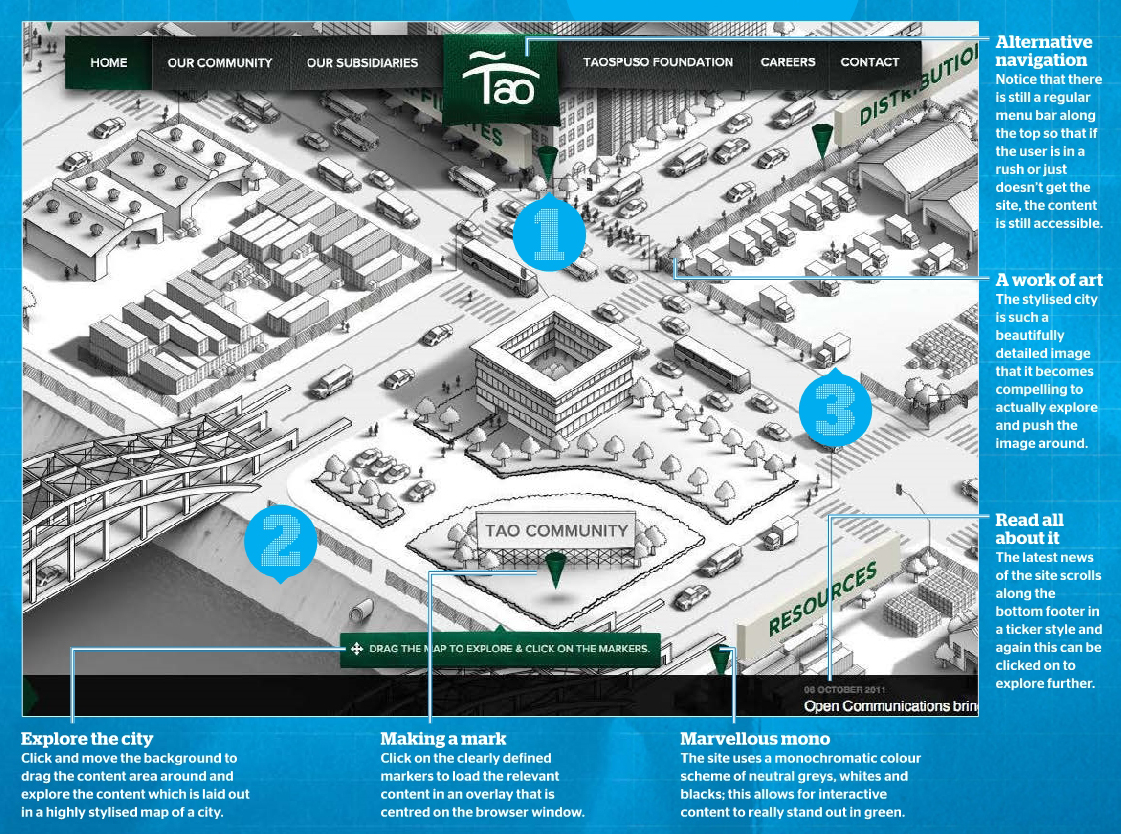
Inspiration: www.taocommunity.com

Creating the experience: “Tao Community is a group of companies that boosts communal relations at its core. What better way of showing this than through an interactive map that reflects what they do? We challenge ourselves to create an experience and, at the same time, make it easy enough for the audience to know what Tao is all about. We wanted the map in greyscale so that we can focus more on the detail without overwhelming the user.”

With the steady rise of sites looking for rich media experiences without the use of Flash – especially in the light of the recent announcements from Adobe – JavaScript has become an increasingly important power source for these experiences. The Tao Community provides a huge map to explore that can be dragged with several clickable elements; these then load relevant content to the centre of the screen. Once this would have doubtlessly been the reserve of Flash, but with HTML supporting ever richer experiences, plug-ins can now be left behind. JavaScript is used here to grab the width and height of the window and make the image full screen, and then power the dragging functionality.

#1 - INSPIRATION: Illustration style
Some of the best sites have extremely stylised content and it’s usually this element alone that makes a site stand out from its rivals. When implementing a unique navigation system that involves exploring a map, the perfect solution is to have a stylised image. In this particular case the map is created like an illustration with a monochromatic colour scheme. This allows for the links to stand out against the background. It’s also worth noting that the links have all been placed towards the centre so the user doesn’t have to develop a repetitive strain injury in order to find the actual content!

#2 - TECHNIQUE: Draggable areas with JavaScript
STEP 1: Get The Library
There are a number of JavaScript libraries that offer the ability to create draggable content within a div area. The simplest that we found can be downloaded from www.switchonthecode.com/tutorials/javascripttutorial-draggable-view-in-a-container, but feel free to shop around for one that works best for you. Once downloaded link to it in the head section of the JavaScript with the code shown below.

CODE:
<script type="text/javascript" src="SOTC-Draggable_View_Example.js">
</script>

STEP 2: Let's Create The Draggable Content
Here we create a div that will have a 1-pixel solid black line around the edge of the div area. In this case, the div is set to be 1,000 pixels wide by 600 pixels high – however, you can change the size of this div tag to whatever scale is necessary for your content. Notice how the overflow is hidden because the image needs to be masked by the div area.

CODE:
<div id="containerBox" style="position:relative; border:1px solid black;width:1000px;
height:600px; overflow:hidden;" >

Click and Drag
Click and Drag: Clicking on the image allows it to be panned around by dragging with the mouse. This enables you to create interactive draggable content for your users similar to that found on the impressive Tao Community website.


STEP 3: Add An Image
Now we add this image inside the ‘containerBox’ div tag. Note that we have to use an image which is larger than the div area, otherwise it won’t be able to be dragged around when it’s clicked on. As you can see in the code, we’ve used an image here which is more than double the width and height of the div tag; this suits our purposes down to the ground.

CODE:
<img id="draggableElement" src="images/largepicture.jpg"
style="width:2530px; height:1688px; position:absolute;
top:-333px;left:-500px; cursor:move;" />
</div>

STEP 4: Add The JavaScript
The following JavaScript code can be added to the body area of the document. Here we store the element to be dragged in the variable ‘el’. At this stage, we also get the parent node, which is the surrounding div area. Finally from this area, we store the left-hand edge of the div tag.

CODE:
<script type="text/javascript">
var el = document.getElementById('draggableElement');
var parent = el.parentNode;
var leftEdge = parent.clientWidth - el.clientWidth;

STEP 5: Wrap Up The Code
The next variable that we add takes the top edge position of the draggable area. The final line of code below just sets this up to be the draggable object. All the real power is done in the library that we linked back in step 1. All you need to do now is save the document and preview in your web browser to check everything is working as it should. And there you have it; now your users can click and drag to their hearts’ content!

CODE:
var topEdge = parent.clientHeight - el.clientHeight;
var dragObj = new dragObject(el, null, new Position(leftEdge, topEdge), new Position(0, 0));
</script>

#3 - TECHNIQUE: Create Line-Art Images
Without a doubt, one of the coolest parts of the Tao Community website is the amazing artwork of the city. This is a time-intensive job that can be achieved by tracing a photo using Photoshop.

STEP 1: On The Right Path…
In the Paths, panel add a new path and switch to the Pen tool. Click on the outside of the buildings to trace the edges. If you need to deselect a path to start a new one, switch to the Direct Selection tool and click on the document, then switch back.
STEP 1: On The Right Path…


STEP 2: Stroke and Fill
Back in the Paths panel, click on "path 1" and hit the second icon from the left at the bottom which will stroke the path with the paintbrush. Choose a light grey colour and start adding shading to various parts of the image to create a sense of depth.
STEP 2: Stroke and Fill


STEP 3: Add A New Layer
Create a new layer and use the Paint Bucket tool with a white foreground colour to fill the canvas with white. Next, add another layer and switch to the Brush tool. Choose a 2-pixel-sized brush and select black as the foreground colour.
STEP 3: Add A New Layer

Interactive Maps With JavaScript Interactive Maps With JavaScript Reviewed by Kamal Thakur on Saturday, September 19, 2020 Rating: 5
Powered by Blogger.